Conecta Tutoriales // Adobe User Group
View allAll Photos Tagged tutorial
Location: Seven Weeks Poort in the Little Karoo
Description: Here is another (half-decent) composition from my recent visit to the spectacular Seven Weeks Poort (I just wish I'd pressed the shutter one second earlier).
The magnificent vertical rockfolds, reaching for the skies on both sides of the road, reflect the inconceivable forces of the volcanic eruptions millions of years ago, forming the chain of Cape ripple-like mountains. Often the converging slopes leave only a narrow pass, just broad enough for the Huis River to pass through, whilst the precipices of naked, distorted rock-faces tower like walls of a natural rampart, obscuring the sun.
I honestly couldn’t think of any better place to pedal my bicycle… can you?
Click here to view this one large.

Click here to check out my Vertorama tutorial.
Equipment: Nikon D300 (Sigma 10-20mm)
Date: April 2009
****The older you are, the more you know about Santa Claus," she said. "You are so big now, you know he can't be just one man, don't you? You know he is everywhere on Christmas Eve. He is in the Big Woods, and in Indian Territory, and far away in York State, and here. He comes down all the chimneys at the same time. You know that, don't you?"
"Yes, Ma," said Mary and Laura.
"Well," said Ma. "Then you see--"
"I guess he is like angels," Mary said, slowly. And Laura could see that, just as well as Mary could.
Then Ma told them something else about Santa Claus. He was everywhere, and besides that, he was all the time.
Whenever anyone was unselfish, that was Santa Claus.
Christmas Eve was the time when everybody was unselfish. On that one night, Santa Claus was everywhere, because everybody, all together, stopped being selfish and wanted other people to be happy. And in the morning you saw what that had done.
"If everybody wanted everybody else to be happy all the time, then would it be Christmas all the time?" Laura asked, and Ma said, "Yes, Laura.” ****
Quote ― Laura Ingalls Wilder
“Some of us still believe there is a Santa Claus...somewhere”
Quote ― Will Leamon
Have a very lovely X-mas !!! Enjoy ;-))
Model: origami Zabukoto Santa
Design: Hideo Komatsu
Diagrams in Tanteidan Convention Book #28
There is also a tutorial by Mariano Zavala
Paper: one sheet of red kami paper 24x24cm
Final size: height 13,5cm
Oi gente....
Fiz um Tutorial (que tá hilário) de um look que eu uso de dia e de noite...
Veja aqui!!!
Estou aguardando o feedback de vcs, gente....
É a primeira vez q eu faço um vídeo e eu tava meio nervosa....rs...
Perdoem os erros, ok?!?
Espero opiniões e sugestões!!
E críticas tbm...
rs
Bjoooooos
EDIT
Meninas....
Disponibilizei o video numa qualidade melhor aki ó
Que feliz!!! Hj o flickr colaborou comigooo.
Mel, esse é especial para vc! É o look do amigo oculto. Finalmente.. Rs...
Para ler, no tamanho grande fica melhor. Não tá gigante pq não tem muitos detalhes, então não precisa!
BEIJOS
Thought i'd make a tutorial on how to create your base for eyes-making in PS.
I've been dealing with copybotters a lot lately, so maybe this will encourage them to learn.
Or maybe anyone who's ever dreamed of creating eyes, but never knew how to start. xD
The tutorial is divided in 4 parts. I made sure it was easy to follow.
<3
Dec 12
Well since I didn't feel like ordering a bunch of legos flashmasks a decided to try to make my own.
You will need:
-Green stuff (or something like it)
-A thin but hard plastic sheet
-A stud
-A lego head to sculpt on
This is how you can do it for yourself step by step:
1-Cut of the antistud-ring part of a stud.
2-Glue a thin piece of plastic on top of the ring on the side you cut.
(to prevent the sculpting material to get in the antistud)
3-Put it onto a lego head (tip is to take a scrappy head and glue a stud underneath to make it easier to remove it afterwards and then put lots of oil(for example olive oil) on top of the head)
4-Make a thin pretty rough sculpt around the head.
5-Cut out the eye parts and the underline of the mask and sand it.
(sculpt again if needed)
6-Remove it from the head. (It won't stick to the head if ypu use the oil on the head)
7-Paint it as you want.
(8-Add other details to it. You can use for example a hard, thin plasticsheet or just sculpt)
Hope you feel inspired :)
Comment if you did get inspired and what you think of it.
This helmet is not done for what I'm going to use it for. :P
This picture demonstrates what can't be done in normal photography (3D glasses required).
A 3D picture that pops out the screen. Watch the picture full size. Put a chair at about 3m (10 feet) away from your monitor. Sit down and watch the branch grow about 80 cm (3 feet) out of your screen!

This is one of my first digital 3D pictures, made with one camera and a simple plastic slider on a tripod.
TUTORIAL - How to make an anaglyph using Photoshop
-----------------------------------------------------------------------------
• Start Photoshop.
• Open the two pictures of your stereo pair.
• Make yourself sure of which is the left and which is the right picture.
• Open the channels palette (menu: Window, Channels). You’ll see the channels RGB, Red, Green and Blue with a small eye in front.
• Activate the LEFT picture (click the title bar).
• Select the red channel in the palette (Ctrl-1). Now only the red channel has the small eye in front. The picture shows the red channel in grayscale.
• Select all (Ctrl-A) and copy to the clipboard (Ctrl-C).
• Activate the RIGHT picture (click the title bar).
• Select the red channel in the palette (Ctrl-1). Again the picture shows the red channel in grayscale.
• Paste the contents of the clipboard (Ctrl-V). What you just did is replacing the red channel of the right image, by the red channel of the left image.
• Click at the gray square left of the RGB channel in the palette, all small eyes switch back on. Important: don’t click at the channel itself, but in the square where the small eye should be.
• Put on your red/cyan 3D-glasses.
• Stroke V and align the picture with the arrow keys.
• Save the picture under a new name.
This is actually really old but yesterday I noticed I never posted it, so here it is, a tutorial on light stencils.
I know my profile says I am not here to sell tutorials, and I am technically not changing that because it is not for sale, it is purely a community service - So here goes.
Jaap's cellphone photography course - Chapter one.
When photographing wildlife with a cellphone it is a little known but highly effective technique to point the phone in the general direction of the subject.
hehehehe
I have told you about GIMP, a free Image Manipulation Program. It works really well, and I´d say as well as Photoshop, and the bonus...IT´S FREE!
I took the originals of few of my photos that I´ve manipulated in Photoshop and re-did them in GIMP, getting the same results.
But as always, it´s best to start slowly and get to know the program and first of all, learn how to download GIMP. For those of you who don´t have gimp, here is a link to how to download it:
www.flickr.com/photos/soffia/2339766783/
The tutorial with explanation images is here: www.soffia.net/gimptutorial02.html
1. Select from the menu: File → Open and choose the Image you´re gonna work with
2. Select from the menu: Colors → Brightness-Contrast...
3. Drag the slider up to 20 or write the number 20 in the box next to contrast. Click OK. Play around with different numbers in both brightness and contrast.
1 » foto original;
2 » Selecione o rosto sem selecionar olhos, boca e narinas;
3 » Após selecionar, copie (ctrl+c), cole (ctrl+v) e duplique a camada colada (ctrl+j). Na cama da meio, aplique um desfoque gaussiano (Menu Filtro/Desfoque/Desfoque gaussiano/5,0 OK). Na última camada (a de cima), você vai aplicar uma alta frequencia (Menu Filtro/Outros/Alta Frequencia - high pass/1,5 OK). A imagem ficará cinza, então mude para sobrepor (overlay) e una as camadas. Obs.: Caso precise arrumar alguma coisa que ficou "embaçada demais", vá na camada do desfoque gaussiano e passe uma borracha macia com uma opacidade baixa.
4 » Boca: Selecione a boca e vá em Menu Camada/Nova camada de preenchimento/Cor sólida. Escolha uma cor que fique boa pra boca e clique em OK. Caso fique borrado, é só usar a borracha macia (sempre usando a borracha macia =))
5 » Como fica a camada =)
6 » Olhos (oba!): Os olhos são que nem a boca. Você seleciona onde você quer a sombra e o lápis. Nesse passo, fiz o lápis e o delineador. Junto à foto tem as camadas. =)
7 » Mesma coisa. Selecione os olhos e pinte com o preenchimento de camada. Caso precise, dê um desfoque gaussiano pra ficar mais realista e tire um pouco da opacidade ou use a borracha, também. Mudei a cor dos olhos, também. Deixei mais viva a cor. É o mesmo passo. =)
8 » Como os olhos ficaram e o blush, que é a mesma coisa. Selecione as maçãs do rosto e vão em Menu Camada/Nova camada de preenchimento/Cor sólida/Escolha a cor OK e tire a opacidade. Será necessário dar uma desfocada (ctrl+f, caso tenha sido o último filtro que você usou =))
9 » Resultado.
Espero que tenham gostado e que eu tenha ajudado! hehe.
Qualquer dúvida, perguntem! =D
Hey everyone. Here's a basic tutorial for the wall technique that you can find in my Wizard's Gate build.
1. Start with a row of headlight bricks attached together. This row can be as long as you want the wall to be.
2. Place one plate on the front-most headlight bricks and two plates on the bricks that are further back. add headlight bricks, alternating studs on the back row and 1x1 tiles on the front.
3. Attatch 1x1 with one stud out to the headlight bricks and 1x1 bricks to the studs left on the front row.
4. Add alternating clips on top of the front row as seen in the picture.
5. Attach 1x1 and 1x2 plates onto the clips leaving a small gap between each to achieve a stonework effect. In long sections of this wall, you will run out of space to slide the 1x2 tiles along the clip to acheive the horizontal gap. But that's ok! Just skip one stud and continue the pattern with the clips attached to the other side of the 1x2 plates.
6. You can achieve a streamlined base to the wall using a bracket or any other half plate offset and three plates on top of that. The wall is 3.5 plates out from the headlight bricks and 7 plates above the initial starting plate. Feel free to use your own brickmath to close those gaps, I just showed what worked for me.
Hope that this helps anyone who was wondering how the wall was constructed. Feel free to try it out for yourself!
My friend, "pixels in my head" sent me a tutorial for the "lomo effect" and I had to try it. The original version of this image is posted 5 photos before this one. I don't know if I accomplished the desired effect, but it is fun. Please check out Dewaun's photostream to see his lomo effect image:
www.flickr.com/photos/dewaun/304521245/
He has also posted the tutorial website.
What do you think? I'm going to have to experiment some more...
Tutorial.
Duplicate layer, right click on layer and choose duplicate layer, name it 01.
Now you have 2 Layers, called Background and 01. Make sure the 01 layer is chosen.
Go to Layer - New Adjustment layer - Brightness Contrast. brightness 0 contrast +17
Go to Layer - New Adjustment layer - Levels - the numbers are 12, 1,00, 215.
Now I´m happy with the sky for now, so now we´ll fix the rocks in the forground.
Duplicate the Background layer, name it 02, and drag it on top of all the layers.
Go to Image - Adjustment layer - Levels ( nb, now go to IMAGE not LAYER) Set it to 17 , 1,91 , 196
With the Erase tool(or Masks) erase the sky and the hill.
Go to Layer - New Adjustment layer - Hue/Saturation. Choose:
Cyan, -18, -31, 0
Blues, -16, -23, 0
And finally I put a little lomo vignette ( how to? you´ll find that here www.flickr.com/photos/soffia/1398672858/in/set-7215760238...
The opacity on the vignette layer on this photo here is 50%
Ever wondered how to build good tudor style walls?
Check out our latest tutorial by Titus V. on brickbuilt.
Hey everyone.
Isaac and John asked me to write a small tutorial for my waterfall design to be featured on their awesome site www.brickbuilt.org/.
Check it out here!
I create this image in my new video tutorial. It's all about Giants ;)
I shot the background in Dubai and the models in the studio ;)
If you like to see more: tutorial.adriansommeling.com
TUTORIAL ♥♥
A lot of people asked me how special shaped bokehs are done. I decided to put together a tutorial and explain things in details.
This is a single shot out of the camera! Nothing was added in Photoshop.
Special thanks to Tony who helped me with the picture formatting!
#28
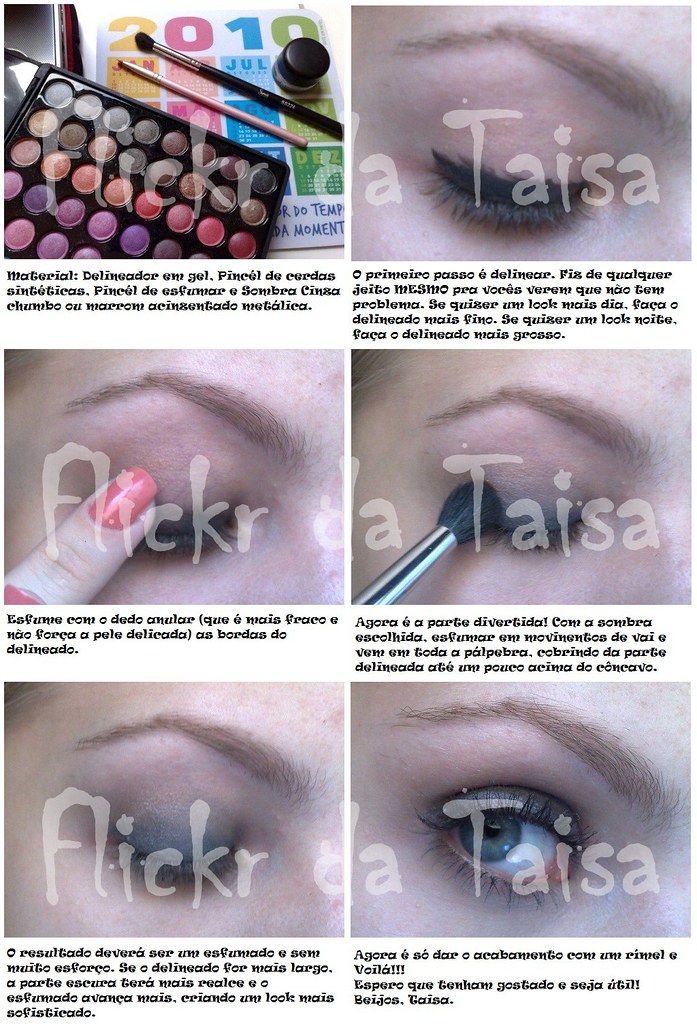
Oi meninas, final do ano a gente tem aquele monte de eventos né? É festinha disso, encerramento daquilo, coquetel, amigo secreto, festa de fim de ano da empresa... pensando nisso resolvi hj fazer uma make não muito cheguei, mas bem bonita pra esses tipos de evento.
Fotografei o passo a passo, mas tô com uma preguiça enorme de editar, vcs perdoam???? rs rs rs
O que usei:
- Fixador de Sombra Contém 1G
- Sombra Pérola do trio Hippie Chic NYX
- Sombra 06 Duda Molinos
- Sombra Marrom Cintilante Contém 1G
- Iluminador Sun Light Nivea
- Jumbo Eyeshadow cor Gold NYX
- Rímel Ashtoning AVON
Depois eu aviso quando postar o tutorial tá?
I had watched a tutorial earlier this week about the camera and different settings, something I think one is supposed to do when you first buy a camera, but why on earth do that?!
There were quite a few things that I learnt ( including how to double take, which I have yet to try) about the camera including the “C” function which I had never used before, I have used the “M” button except for when I hand it to someone else and then put it into point and shoot mode.
This is a result of the “c” function, the light source is the phones torch, I was surprised just how clear the shot was but then of course the iso is up through the roof.
It’s a cyclamen but and stem but then I suspect that you knew that anyway.
Thanks for stopping
Inspired by THIS Tutorial - with thanks!
Somehow, this song comes to mind when I look at my little creation - ENJOY!
As promised, here is the tutorial for my littler R0-XI Droid. I'd love to see your versions of it, so feel free to tag me in your post, if you use the design.
I'm writing a series of reroot tutorials, and just posted the first part on my blog: lovalizious.blogspot.nl/2013/12/blythe-reroot-tutorial-pa...
Let me know what you think!
Gostaria do tutorial destes box, para passar para uma amiga muito querida Lelê Ceschini, se alguém tiver, agradeço!
bjos
This tutorial explains how I built the 45° roof of my Riften Watchtower, and also shows the method I used to make the plank siding underneath the roof-line.
Check it out on brickbuilt.
This can be done in 2 ways. The Vanishing Point Filter is one way and there are dozens of Tutorials to show you how. But the much simpler way is to put your background and type on 2 layers. Then go to Edit, Perspective Warp. You will see two modes on the top left corner of your screen one says Layout, then other says Warp. Be sure you are on the Text Layer.
With the Layout screen you can make your Panels to go around your text. Be sure you have a straight line on the divider. You can move these anywhere to cover your text. Make another panel for the other side, start it very close to the first panel. When you are done just join the Links to combine them.
Then clip on Warp. Nothing happens. but now when you move the panel links you can line up your type perfectly on the lines.
When you finish if one side didn't line up quite right go back to Perspective Warp and make another Panel and move it.
This is a much simpler way to accomplish the same result.
This is the second tutorial geared around the frame warping and a little more on shadowing using PS CS2. Also see below for the first tutorial on creating a OOB as well. Please let me know of any errors or if you have questions here.
Working on a temple and decided to add an interior. Wanted to play around a bit with the floor and found some inspiration looking at -LittleJohn and Katie Walker’s work so I decided to make a tutorial :) Hopefully some people will find it useful. The full build should be done fairly soon so stay tuned ;)
Okay, so I made this tutorial a while back, and I shared it on my Facebook MOC page.
I've got the link to the rest of the tutorial below!It's relatively simple and decently sturdy. Plus, IMO it fits in pretty good with an Oriental setting. :)
Enjoy and God bless!
www.facebook.com/LEGObyNelson/photos/pcb.1083726751661965...
Image created for a tutorial.... inspired by the amazing James White... signalnoise.com
Check the tutorial out at abduzeedo.com/really-cool-eclipse-effect-photoshop
NEW VIDEO! iPhone Photography Tutorial: Lippen - Surreal Portrait #04 #video
Check link on my Instagram profile for my channel. OR here’s for direct link to video: youtu.be/Ok9e_PtsUGU
Enjoy!
#surreal #icolorama #superimpose #lensdistortions #mextures #iphoneart #mobileart #iphoneonly
•
•
•
•
•
•
•
•
•
•
•
•
#instagram #mobileartistry #shotaward #artsick #fineartphg #expofilm #enter_imagination #graphicroozane #thecreativers #manipulationteam #moodcommunity #launchdsigns #milliondollarvisuals #imaginativeuniverse
#iphoneography #iphone #photography